---
title: "How to View eStore Analytics Order Details: Step-by-Step Guide"
description: Discover how to navigate eStore Merchant Analytics to view detailed order information and gain insights on your store’s sales performance.
---
[Skip to content](https://help.rush.ph/knowledge/how-to-view-estore-analytics-order-details#main-content)
English
Show submenu for translations
[File a Ticket](https://help.rush.ph/knowledge/kb-tickets/new)

Open main navigation
Close main navigation
- English
Show submenu for translations
- [File a Ticket](https://help.rush.ph/knowledge/kb-tickets/new)
- Contact us
Contact us
How can we help you?
- There are no suggestions because the search field is empty.
1. [Knowledge Base | RUSH Help Center](https://help.rush.ph/knowledge)
2. [Managing your CMS](https://help.rush.ph/knowledge/managing-your-cms)
3. [eStore](https://help.rush.ph/knowledge/managing-your-cms#estore)
# How to View eStore Analytics Order Details: Step-by-Step Guide
## Quickly track and analyze your eStore’s order performance in one place.
Access detailed insights on sales, deliveries, and customer orders directly through your CMS under the ‘Analytics’ module.
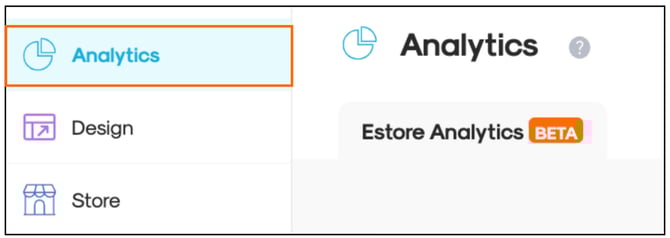
Go to the **“Order Details”** tab.
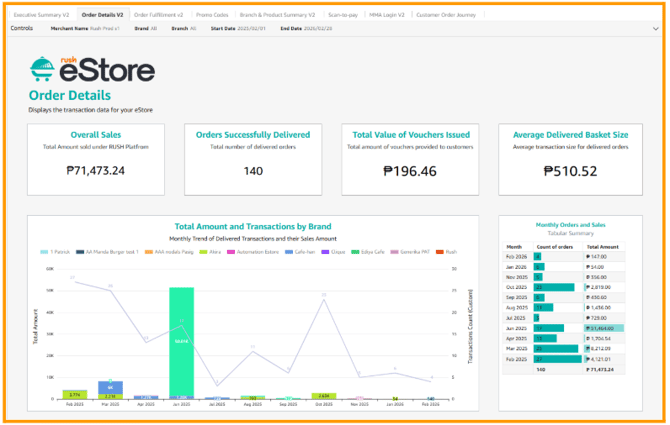
- **Overall Sales** - Shows a summary of your eStore’s performance, combining key sales and order metrics in one view.
- **Orders Successfully delivered** - This is the total number of completed and fulfilled orders.
- **Total Net Sales** - Shows total revenue after deducting vouchers or discounts.
- **Total Value of Vouchers Issued** - Total amount of discounts given to customers through vouchers.
- **Average Delivered Basket Size** - Average amount or value spent per completed order.
- **Total Amount and Transactions by Brand** - Comparison of sales value and number of transactions per brand, in a bar graph format.
- **Monthly Order and Sales** - A trend of orders and sales over time (per month) in a line graph.
In this part, it shows the **monthly view of the average basket size per delivered order** which helps merchants see how much, on average, customers are spending in each order for a given month. Bars on the right represent the average order value per month.
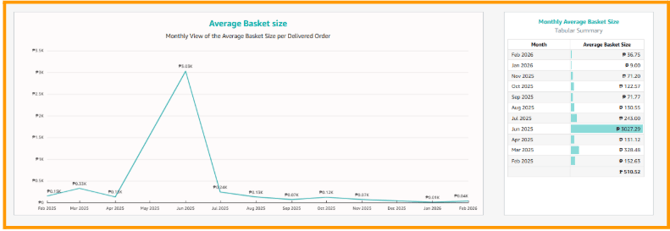
While this shows the **average amount spent per order** for each brand over time (monthly view) that helps merchants understand how much customers typically spend in a single transaction.
Each dash line on the top part represents a **brand**, while the graph shows how its **average basket size changes monthly**. Sudden spikes or drops indicate changes in customer purchasing behavior, promotions, or demand trends.
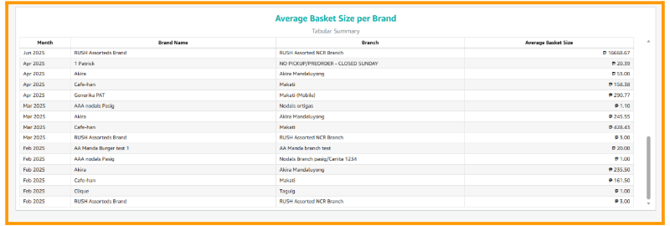
Last for the Order details tab is the detailed **breakdown of the average basket size per brand and branch** by month. It shows exactly how much customers spend on average per order across different locations and time periods.
- [Getting Started](https://help.rush.ph/knowledge/getting-started#main-content)
- [Before Getting Started](https://help.rush.ph/knowledge/getting-started#before-getting-started)
- [Set up your eStore](https://help.rush.ph/knowledge/getting-started#set-up-your-estore)
- [Set up your Loyalty Program](https://help.rush.ph/knowledge/getting-started#set-up-your-loyalty-program)
- [Set up your Account](https://help.rush.ph/knowledge/getting-started#set-up-your-account)
- [Managing your CMS](https://help.rush.ph/knowledge/managing-your-cms#main-content)
- [eStore](https://help.rush.ph/knowledge/managing-your-cms#estore)
- [Loyalty](https://help.rush.ph/knowledge/managing-your-cms#loyalty)
- [Dine-in experience](https://help.rush.ph/knowledge/managing-your-cms#dine-in-experience)
- [Managing your Merchant Mobile App](https://help.rush.ph/knowledge/managing-your-merchant-mobile-app#main-content)
- [eStore Functions](https://help.rush.ph/knowledge/managing-your-merchant-mobile-app#estore-functions)
- [Loyalty Functions](https://help.rush.ph/knowledge/managing-your-merchant-mobile-app#loyalty-functions)
- [Customer Channels](https://help.rush.ph/knowledge/customer-channels#main-content)
- [eStore Web](https://help.rush.ph/knowledge/customer-channels#estore-web)
- [eStore Mobile App](https://help.rush.ph/knowledge/customer-channels#estore-mobile-app)
- [Punch Card Journey](https://help.rush.ph/knowledge/customer-channels#punch-card-journey)
- [Privilege Card Journey](https://help.rush.ph/knowledge/customer-channels#privilege-card-journey)
- [FAQ's](https://help.rush.ph/knowledge/faqs-1)
- [Service Level Agreement](https://help.rush.ph/knowledge/service-level-agreement)
- [Content Management System](https://help.rush.ph/knowledge/content-management-system#main-content)
- [eStore Functions](https://help.rush.ph/knowledge/content-management-system#estore-functions)
- [Terms and Conditions](https://help.rush.ph/knowledge/terms-and-conditions#main-content)
- [Terms of Agreement Annexes](https://help.rush.ph/knowledge/terms-and-conditions#terms-of-agreement-annexes)
- [News Archives](https://help.rush.ph/knowledge/news-archives#main-content)
- [Merchant Advisories](https://help.rush.ph/knowledge/news-archives#merchant-advisories)
[](https://www.rush.ph/)
Copyright © 2026, RUSH Technologies Inc.