---
title: Managing Your Brands and Branches
description: Easily manage multiple brands and branches in one place. Configure settings, monitor performance, and maintain operational control through your own CMS.
---
[Skip to content](https://help.rush.ph/knowledge/managing-brands-and-branches#main-content)
English
Show submenu for translations
[File a Ticket](https://help.rush.ph/knowledge/kb-tickets/new)

Open main navigation
Close main navigation
- English
Show submenu for translations
- [File a Ticket](https://help.rush.ph/knowledge/kb-tickets/new)
- Contact us
Contact us
How can we help you?
- There are no suggestions because the search field is empty.
1. [Knowledge Base | RUSH Help Center](https://help.rush.ph/knowledge)
2. [Managing your CMS](https://help.rush.ph/knowledge/managing-your-cms)
3. [eStore](https://help.rush.ph/knowledge/managing-your-cms#estore)
# Managing Your Brands and Branches
## The Locations module lets you manage and customize your brands and branches, allowing you to tag products across all branches or adjust product availability for each branch based on your preferences.
#### **Tagging Products**
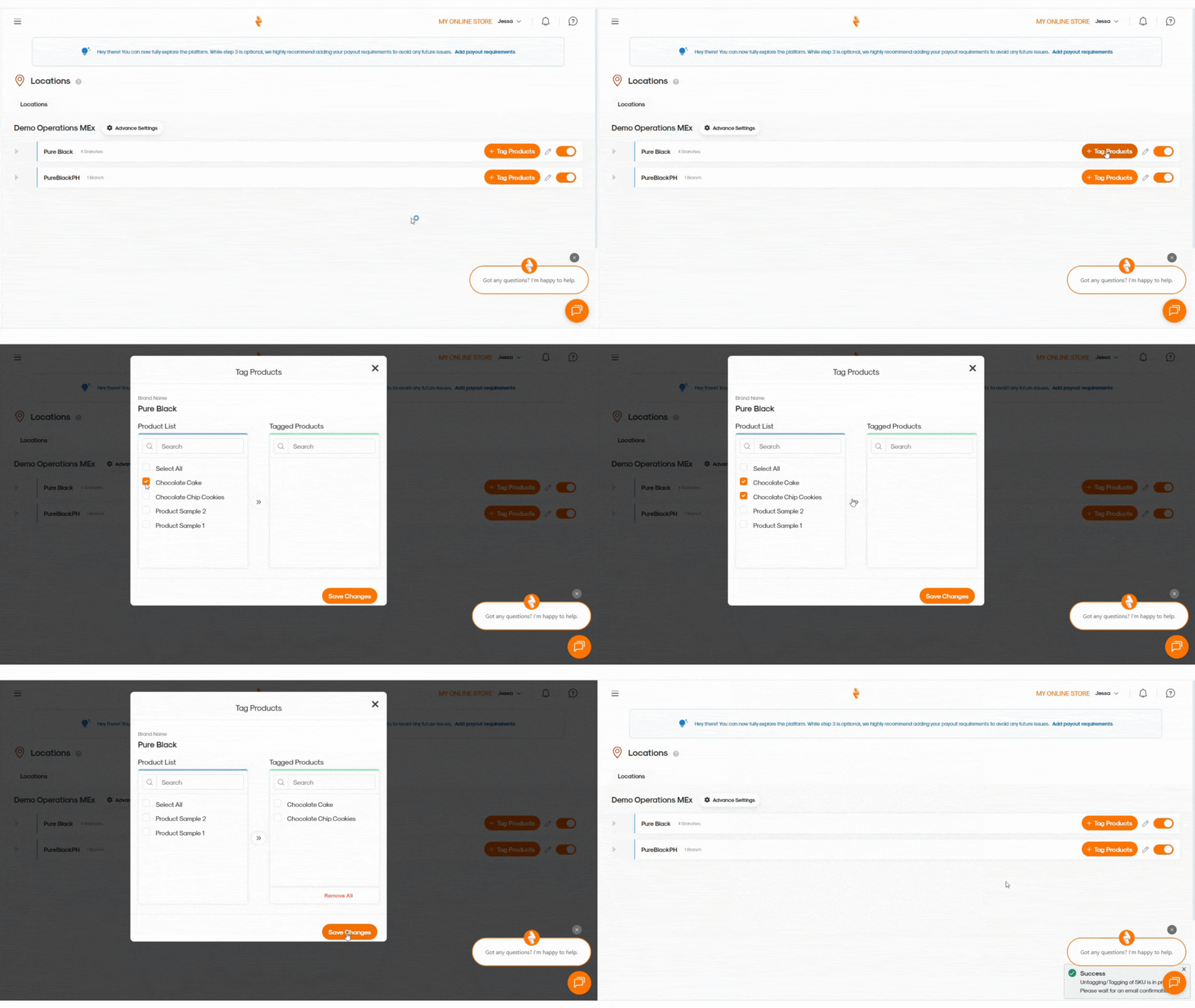
1. Go to the **Locations Module** to view all brands and branches.
2. Click **+ Tag Products** to display the product list.
3. Select the products you want to tag under the brand.
4. Click the **arrow button** to move the selected items under **Tagged Products**.
5. Click **Save Changes**.
****
### **Advanced Settings**
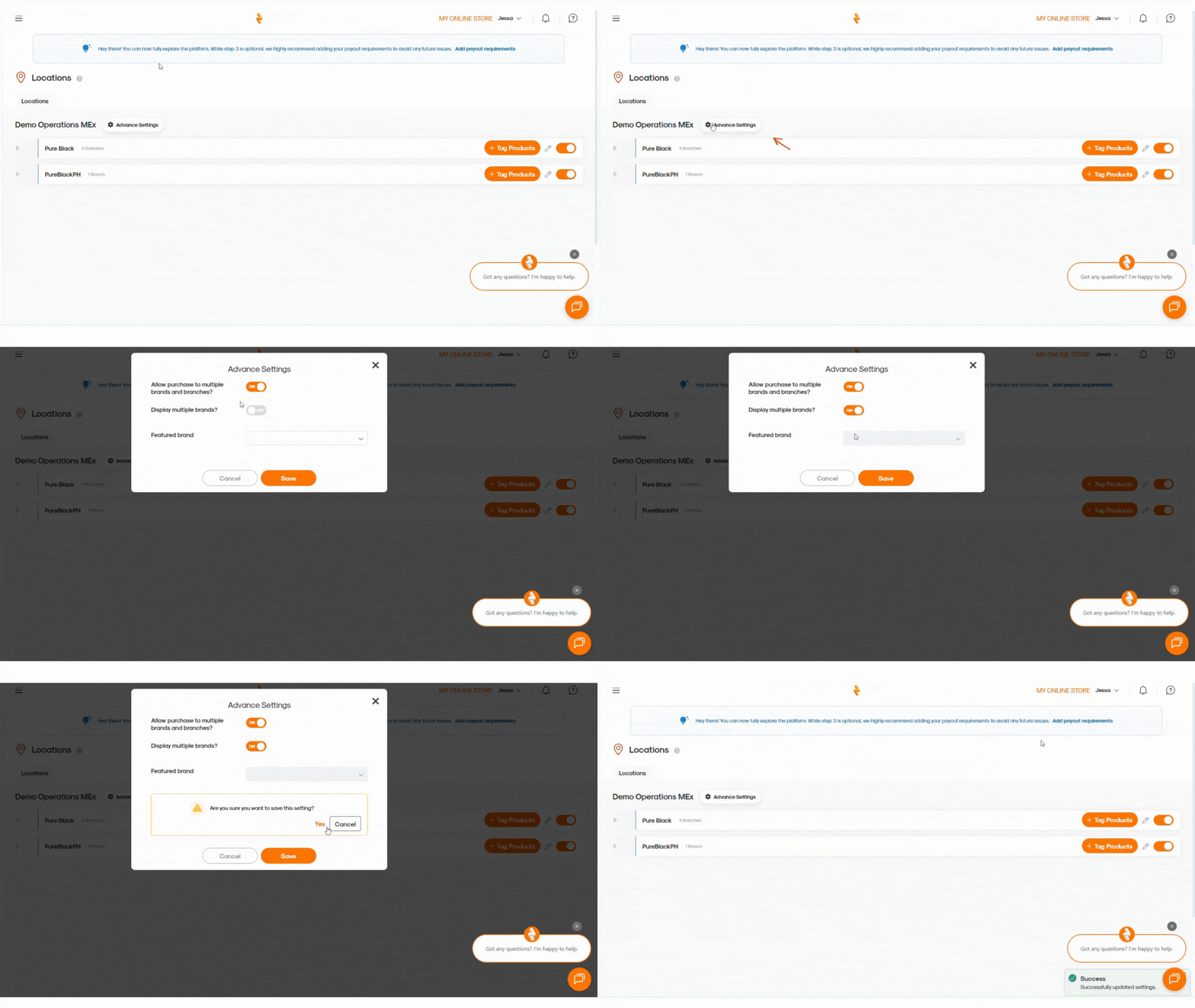
Use **Advanced Settings** to configure how your brands appear and function on customer channels. You can:
- Enable ordering from multiple brands and branches
- Display multiple brands on customer-facing channels
- Set a **Featured Brand** for increased visibility
****
### **Editing Brands**
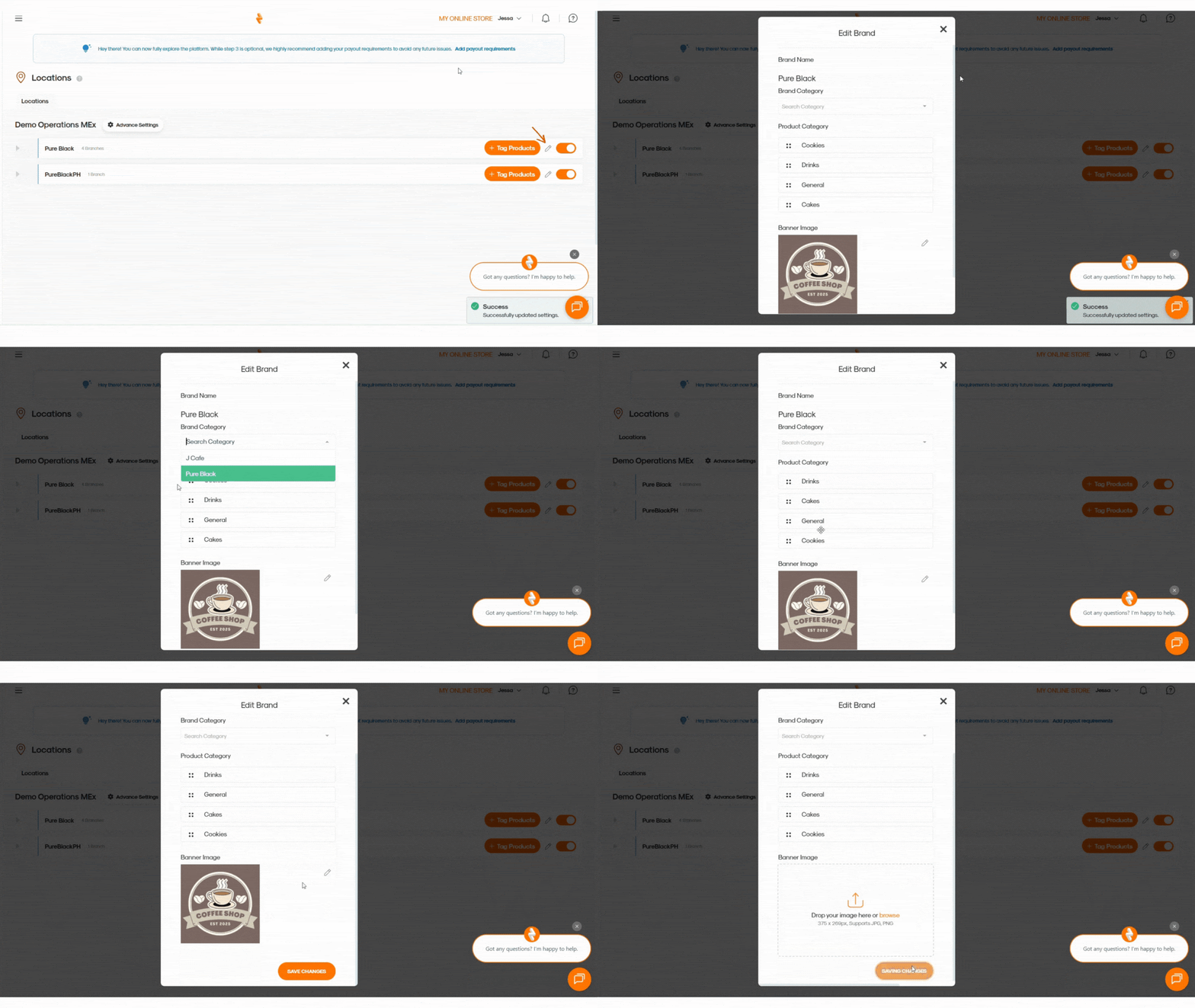
Aside from editing your brand details in **Store Module \> Organization Tab**, you can also customize your brand directly in the **Locations Module** by clicking the **Pencil Icon** next to the chosen brand.
From here, you can:
- Update the **Brand Category**
- Update the **Product Category**
- Upload a **Banner Image** (required size: 375 × 269 px; supported formats: JPG and PNG)
*Important Note:*
Brands cannot be deleted from the Locations Module. To remove a brand, go to Store Module \> Organization Tab.
- [Getting Started](https://help.rush.ph/knowledge/getting-started#main-content)
- [Before Getting Started](https://help.rush.ph/knowledge/getting-started#before-getting-started)
- [Set up your eStore](https://help.rush.ph/knowledge/getting-started#set-up-your-estore)
- [Set up your Loyalty Program](https://help.rush.ph/knowledge/getting-started#set-up-your-loyalty-program)
- [Set up your Account](https://help.rush.ph/knowledge/getting-started#set-up-your-account)
- [Managing your CMS](https://help.rush.ph/knowledge/managing-your-cms#main-content)
- [eStore](https://help.rush.ph/knowledge/managing-your-cms#estore)
- [Loyalty](https://help.rush.ph/knowledge/managing-your-cms#loyalty)
- [Dine-in experience](https://help.rush.ph/knowledge/managing-your-cms#dine-in-experience)
- [Managing your Merchant Mobile App](https://help.rush.ph/knowledge/managing-your-merchant-mobile-app#main-content)
- [eStore Functions](https://help.rush.ph/knowledge/managing-your-merchant-mobile-app#estore-functions)
- [Loyalty Functions](https://help.rush.ph/knowledge/managing-your-merchant-mobile-app#loyalty-functions)
- [Customer Channels](https://help.rush.ph/knowledge/customer-channels#main-content)
- [eStore Web](https://help.rush.ph/knowledge/customer-channels#estore-web)
- [eStore Mobile App](https://help.rush.ph/knowledge/customer-channels#estore-mobile-app)
- [Punch Card Journey](https://help.rush.ph/knowledge/customer-channels#punch-card-journey)
- [Privilege Card Journey](https://help.rush.ph/knowledge/customer-channels#privilege-card-journey)
- [FAQ's](https://help.rush.ph/knowledge/faqs-1)
- [Service Level Agreement](https://help.rush.ph/knowledge/service-level-agreement)
- [Content Management System](https://help.rush.ph/knowledge/content-management-system#main-content)
- [eStore Functions](https://help.rush.ph/knowledge/content-management-system#estore-functions)
- [Terms and Conditions](https://help.rush.ph/knowledge/terms-and-conditions#main-content)
- [Terms of Agreement Annexes](https://help.rush.ph/knowledge/terms-and-conditions#terms-of-agreement-annexes)
- [News Archives](https://help.rush.ph/knowledge/news-archives#main-content)
- [Merchant Advisories](https://help.rush.ph/knowledge/news-archives#merchant-advisories)
[](https://www.rush.ph/)
Copyright © 2026, RUSH Technologies Inc.