---
title: Checking Customer Details
description: Customer details are readily available in the RUSH CMS - here's a quick guide on how you may access them!
---
[Skip to content](https://help.rush.ph/knowledge/checking-customer-details-1#main-content)
English
Show submenu for translations
[File a Ticket](https://help.rush.ph/knowledge/kb-tickets/new)

Open main navigation
Close main navigation
- English
Show submenu for translations
- [File a Ticket](https://help.rush.ph/knowledge/kb-tickets/new)
- Contact us
Contact us
How can we help you?
- There are no suggestions because the search field is empty.
1. [Knowledge Base | RUSH Help Center](https://help.rush.ph/knowledge)
2. [Managing your CMS](https://help.rush.ph/knowledge/managing-your-cms)
3. [Loyalty](https://help.rush.ph/knowledge/managing-your-cms#loyalty)
# Checking Customer Details
## Customer details are readily available in the RUSH CMS - here's a quick guide on how you may access them!
### **Steps to Access Customer Information:**
1. **Log in** to your CMS account.
2. Navigate to the **Customers** module, then click the **Customer** tab.
3. Scroll to the right until you see the **Action** column, then click the **pencil icon** beside the customer’s name.
From there, you’ll be able to view various tabs related to the customer’s profile and transaction history.
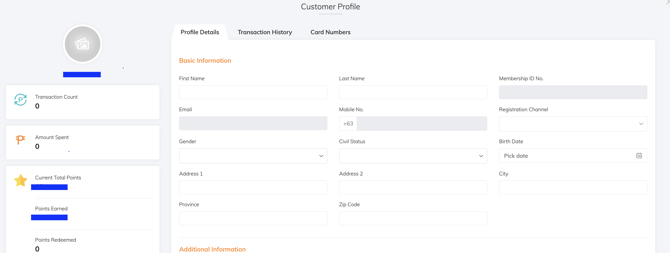
### **Profile Details Tab**
In this tab, you’ll find the following information:
- Name
- Membership ID
- Email Address *(not editable)*
- Contact Number *(not editable)*
- Registration Channel
- Gender
- Civil Status
- Birthdate
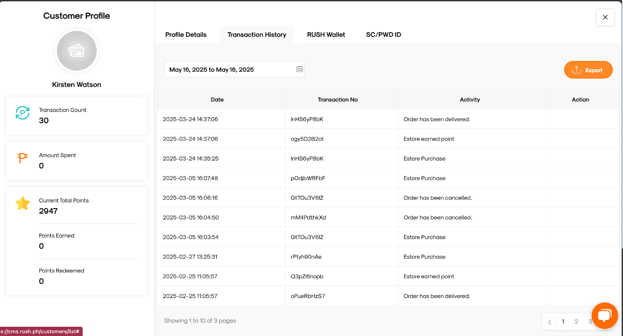
### **Transaction History** **Tab**
This tab displays records across **all channels**, including sales and loyalty-related transactions. This helps you monitor financial performance and catch any discrepancies.
You'll see the following details in tabular format:
- Date and Time
- Customer Name
- Card Number *(if applicable)*
- Guest Info *(if applicable)*
- Mobile Number
- Registration Date
- Points Mechanics *(for merchants using the loyalty function)*
- Transaction ID
### Tip: You can export this data by clicking the **Export** button in the upper right corner of the Transaction History tab. **Loyalty Function Fields**
For merchants using the loyalty program, additional fields will also appear:
- Transaction Type
- Transaction Amount
- Points Earned
- Employee ID
- Employee Name
- Reward Redeemed
- Reward Price
- Date and Time of Refund Request
- Requested By
- Date and Time Refund Was Sent
The **Transaction ID** in the CMS matches the Reference Number shown in the Merchant App.
### **Voiding Earned Points**
If you've mistakenly awarded points or need to reverse a transaction, you can **void** it:
1. In the **Transaction History** tab, locate the correct **Transaction ID**.
2. Click **“X Void”** beside the transaction.
The earned points will be deducted from the customer's account.
### **Card Numbers Tab**
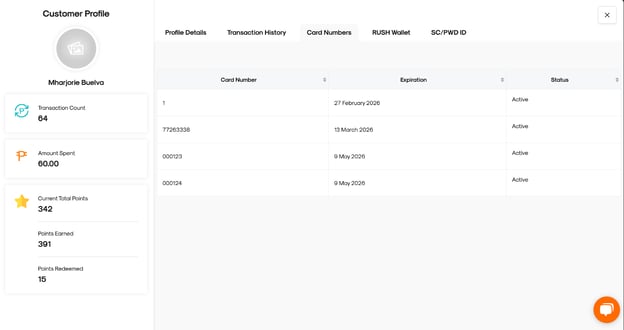
This tab displays details of any **privilege cards** availed by the customer. This section helps you verify the customer's card status and expiration details.
### **Information Displayed:**
- Card Number – The unique identifier assigned to the customer’s card
Expiration Date – The validity period of the card
- Status – Indicates whether the card is Active, Expired, or Inactive
#### **SC/PWD ID Tab**
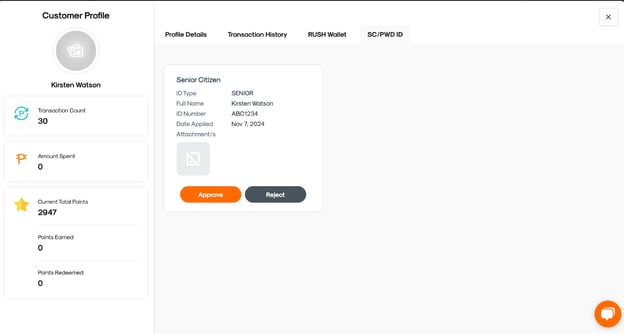
This tab displays the details of any uploaded Senior Citizen **(SC)** or Persons with Disabilities **(PWD)** IDs associated with a customer's account.
### **Information Displayed:**
- ID Type – Indicates whether the uploaded ID is for Senior Citizen (SC) or PWD
- Full Name – Name as shown on the ID
- ID Number – Official number of the SC/PWD ID
- Date Applied – Date the ID was uploaded to the system
- Attachment/s – Uploaded image(s) of the ID for verification
### **Approval Actions:**
You can verify the customer's eligibility for special discounts by reviewing the uploaded details. Then, click the appropriate button to either:
- **Approve** – Accept the ID and apply the discount
- **Reject** – Decline the uploaded ID if the information is incomplete or invalid
- [Getting Started](https://help.rush.ph/knowledge/getting-started#main-content)
- [Before Getting Started](https://help.rush.ph/knowledge/getting-started#before-getting-started)
- [Set up your eStore](https://help.rush.ph/knowledge/getting-started#set-up-your-estore)
- [Set up your Loyalty Program](https://help.rush.ph/knowledge/getting-started#set-up-your-loyalty-program)
- [Set up your Account](https://help.rush.ph/knowledge/getting-started#set-up-your-account)
- [Managing your CMS](https://help.rush.ph/knowledge/managing-your-cms#main-content)
- [eStore](https://help.rush.ph/knowledge/managing-your-cms#estore)
- [Loyalty](https://help.rush.ph/knowledge/managing-your-cms#loyalty)
- [Dine-in experience](https://help.rush.ph/knowledge/managing-your-cms#dine-in-experience)
- [Managing your Merchant Mobile App](https://help.rush.ph/knowledge/managing-your-merchant-mobile-app#main-content)
- [eStore Functions](https://help.rush.ph/knowledge/managing-your-merchant-mobile-app#estore-functions)
- [Loyalty Functions](https://help.rush.ph/knowledge/managing-your-merchant-mobile-app#loyalty-functions)
- [Customer Channels](https://help.rush.ph/knowledge/customer-channels#main-content)
- [eStore Web](https://help.rush.ph/knowledge/customer-channels#estore-web)
- [eStore Mobile App](https://help.rush.ph/knowledge/customer-channels#estore-mobile-app)
- [Punch Card Journey](https://help.rush.ph/knowledge/customer-channels#punch-card-journey)
- [Privilege Card Journey](https://help.rush.ph/knowledge/customer-channels#privilege-card-journey)
- [FAQ's](https://help.rush.ph/knowledge/faqs-1)
- [Service Level Agreement](https://help.rush.ph/knowledge/service-level-agreement)
- [Content Management System](https://help.rush.ph/knowledge/content-management-system#main-content)
- [eStore Functions](https://help.rush.ph/knowledge/content-management-system#estore-functions)
- [Terms and Conditions](https://help.rush.ph/knowledge/terms-and-conditions#main-content)
- [Terms of Agreement Annexes](https://help.rush.ph/knowledge/terms-and-conditions#terms-of-agreement-annexes)
- [News Archives](https://help.rush.ph/knowledge/news-archives#main-content)
- [Merchant Advisories](https://help.rush.ph/knowledge/news-archives#merchant-advisories)
[](https://www.rush.ph/)
Copyright © 2026, RUSH Technologies Inc.