
Learn how to access and export your eStore analytics from the CMS for better insights and reporting.
- Log in to your CMS account
- On the left side menu, click Analytics Module
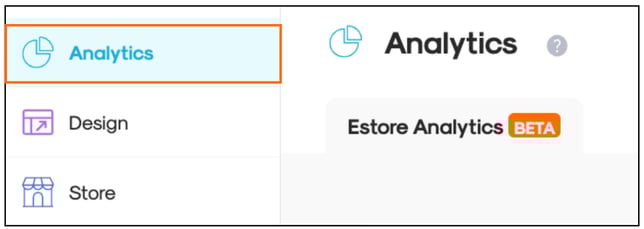
- Under the eStore Analytics tab, you will find the Analytics Dashboard
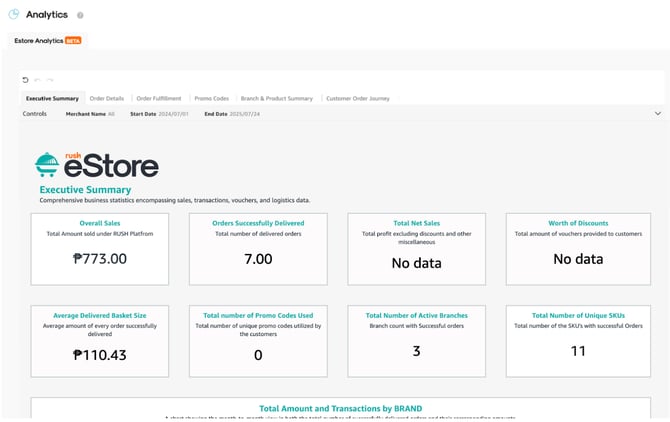
- Filter the start and end dates to view data for your desired time period
- Explore the different tabs, depending on the type of data you want to review.
Exporting Reports from eStore Analytics
To export specific data:
- Go to the upper-right side of the table and click the menu options (three dots)
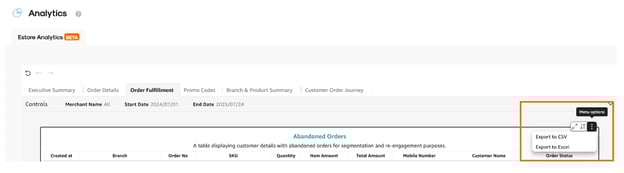
- Select Export to download the file in CSV or Excel format.
- The file will automatically be downloaded to your computer.
Note:
Only the main CMS user of the account has access to analytics.