
As a merchant, you can access your eStore executive summary analytics through your CMS under the ‘Analytics’ Module. Follow the steps below:
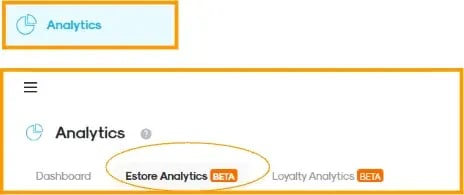
Go to the “Executive Summary” tab and select a date range to view your business performance summary.
-
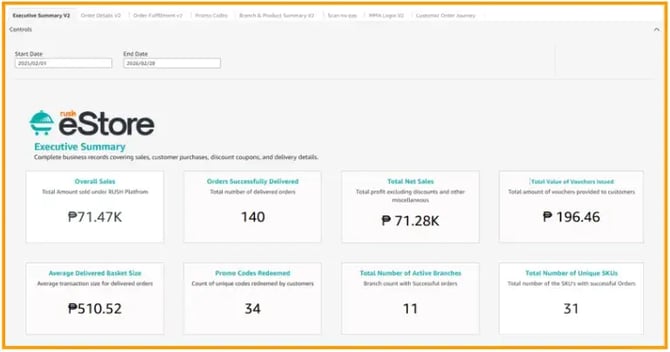
Overall Sales - This shows your gross revenue before deductions like discounts or fees. It’s your top-line performance indicator how much you’ve sold overall.
-
Orders Successfully delivered - The total number of orders that were completed and delivered to customers. This reflects fulfilled demand. High numbers mean strong operations.
-
Total Net Sales - Total sales after deducting discounts, vouchers, and other adjustments. This is your actual earnings from sales and this is the accurate view of profitability.
-
Total Value of Vouchers Issued - This is the total monetary value of all discount vouchers given to customers which represents your marketing spend via promotions to drive conversions.
-
Average Delivered Basket Size - The average amount spent per completed order.
-
This shows customer spending behavior per transaction, higher value means customers are buying more items.
-
Promo Codes Redeemed - The number of promo codes used by customers.
-
Total Number of Active Branches - The number of branches that successfully fulfilled at least one order. This reflects your operational reach.
-
Total Number of Unique SKUs - The number of products (Stock Keeping Units) that were successfully sold. This shows your product variety performance, how many items in your catalog are actually generating sales.
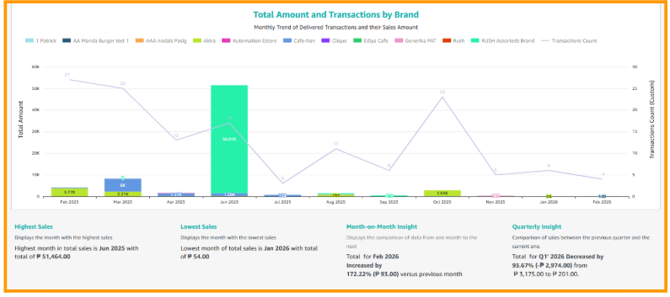
This section shows your Total Sales Amount and Number of Transactions by Brand over time.
The bars represent the total sales amount per month, broken down by brand while the line graph shows the number of transactions (orders) made each month.
With this, you can easily see:
- Which months generated higher or lower sales
- How many orders were completed per month
- Which brands contributed most to your sales
- Trends or changes in your monthly performance
Below the chart you’ll also find,
- Highest Sales Month - when you earned the most
- Lowest Sales Month - when sales were at their lowest
- Month-on-Month Insight – comparison of your recent performance vs. the previous month
- Quarterly Insight – overall trend compared to the previous quarter
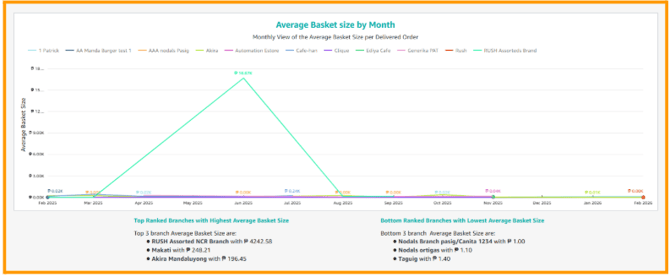
Your Average Basket Size by Month or basically how much customers spend per order over time.
Line graph - average amount spent per completed order each month, broken down by brand to understand how much customers typically spend every time they place an order.
With this you can,
- Track if customers are spending more or less per order
- Identify months with higher-value purchases
- Compare spending behavior across brands
Below the chart, you’ll also see:
- Top Ranked Branches – branches with the highest average basket size (customers spend more per order)
- Bottom Ranked Branches – branches with the lowest average basket size (customers spend less per order)
This helps you evaluate customer spending habits and identify which branches or brands are driving higher-value transactions.
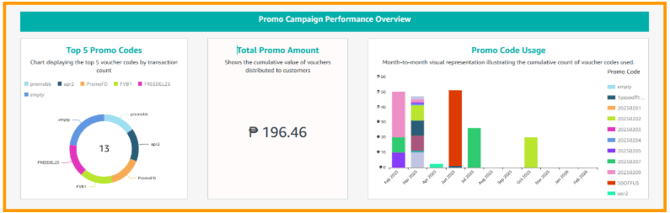
Here, you can see the Promo Campaign Performance Overview or the summary of how your promotional campaigns are performing.
-
Top 5 Promo Codes
Displays the top 5 voucher codes based on the highest number of transactions, helping you identify your most effective promotions.
-
Total Promo Amount
Shows the total value of vouchers or discounts given to customers, representing your overall promotional spend.
-
Promo Code Usage
Provides a month-to-month view of how often promo codes are used, helping you track trends and customer engagement with your campaign.
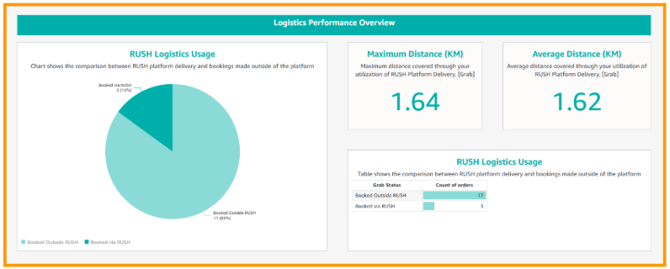
This part provides a quick summary of your delivery activity, showing how orders are booked and the distances covered through the platform’s logistics service.
-
RUSH Logistics Usage
Is the comparison between orders booked via RUSH platform and those outside the platform, helping you track how often the integrated logistics feature is used.
-
Maximum Distance (KM)
Shows the longest delivery distance recorded from orders fulfilled using the RUSH logistics service.
-
Average Distance (KM)
Indicates the average delivery distance of orders processed via RUSH platform’s logistics integration.
-
Logistics Usage Table
Provides the exact number of orders booked via RUSH and outside the platform for easier tracking and comparison of logistics usage.
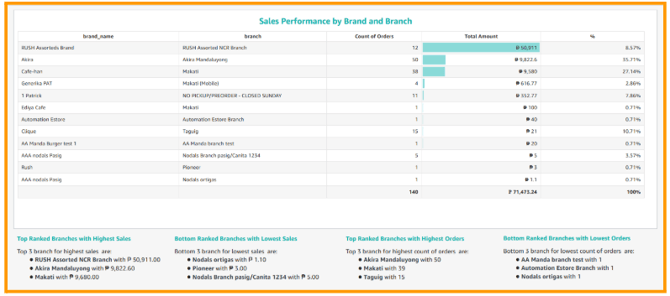
This section shows how each brand and branch is performing based on the number of orders and total sales generated for merchants to quickly identify which of them are generating the most orders and highest revenue, as well as which ones may need improvement.
From the report, some branches contribute significantly more to overall sales and order volume.
The ranking summaries below the table highlight the top-performing and lowest-performing branches to help merchants evaluate performance across locations.
-
Brand_Name
Brand or business name under which the orders were placed.
-
Branch
The specific store location or outlet where the orders were fulfilled.
-
Count of Orders
The total number of orders received by that brand or branch within the selected period.
-
Total Amount
The total sales revenue generated from all orders for that brand or branch.
-
% (Percentage icon)
Shows the share of total sales contributed by that brand or branch compared to the overall sales in the report.
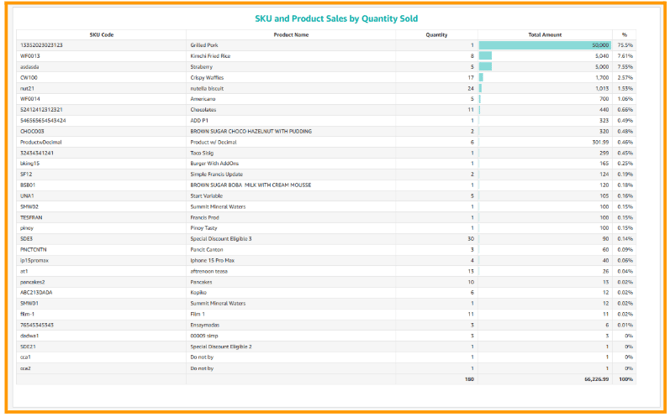
Sales performance of each product (SKU) based on the number of items sold and the total revenue generated. It helps merchants quickly identify which products are selling the most, generating the highest revenue, or contributing the largest share of total sales.
-
SKU Code - Unique product identifier used to track and manage a specific item in your inventory.
-
Product Name - Name of the product purchased by customers.
-
Quantity - The total number of units sold for that product during the selected period.
-
Total Amount - The total sales value generated from that product.
-
% (Percentage icon) - The product’s contribution to total sales compared to all other products in the re