
Transaction History Tab in the Punch Card Module
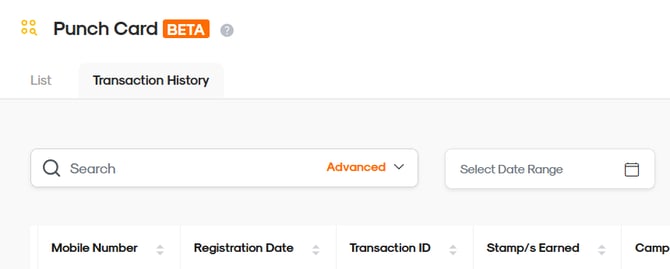
You can view your transaction history by navigating to the Transaction History tab under the Punch Card module. This tab allows you to see detailed logs of your punch card campaign, including the following information:
- Date and Time: When the transaction occurred.
- Customer Name: The registered name of the customer.
- Mobile Number: The customer’s registered phone number.
- Registration Date: The date the customer registered on the punch card.
- Transaction ID: A unique identifier assigned to the transaction.
- Stamp(s) Earned: The number of stamps earned by the customer.
- Campaign Name: The campaign under which this transaction occurred.
- Employee ID: The employee number of the frontliner who issued the stamp.
Additional Note:
- For Send via Mobile Number or Scan Customer’s QR Code transactions, the Employee ID is recorded.
- For Generate QR or Generate Code transactions, no Employee ID is recorded because these actions are performed by the customer.
- Void stamps will record the Employee ID.
- Transaction Type: The type of transaction (e.g., earn stamps, earn rewards, void stamps).
- Rewards: The reward received by the customer, if applicable.
- Remarks: Any additional notes regarding the transaction.
By regularly reviewing the transaction history in the Punch Card module, you can gain valuable insights into customer engagement, track rewards redemption, and ensure the accuracy of your campaign records. This overview helps you make informed decisions to optimize your loyalty programs and enhance the overall customer experience.