
RUSH delivers your weekly payout report to your email in an Excel file, named like this:
[Merchant Name]_Summary_Payout_[Month][Week][Week Number]_[Year]
Example:
RUSH_Summary_Payout_January_Week_1_2025_
1. Transactions Tab
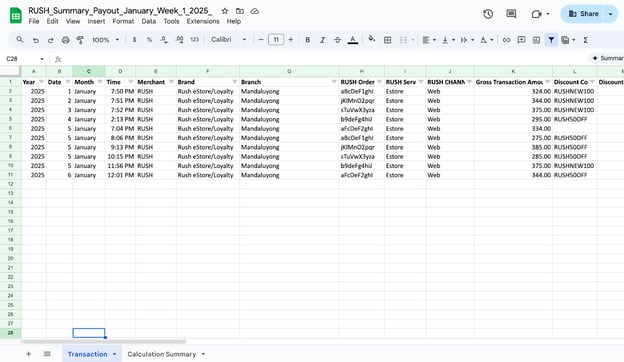
This tab shows all your transactions for the week. Key details include:
- Date & Time – When the transaction happened
- Merchant / Brand / Branch – Where the order came from
- RUSH Order ID – Unique ID of the order
- RUSH Service & Channel – Type of service used
- Gross Transaction Amount – Total order amount
- Discount Code & Amount – Any discounts applied
- Net Transaction Amount – Amount after discounts
- RUSH Transaction Fee & VAT – Fees charged by RUSH
- Delivery Fee & VAT – Delivery charges
- Delivery Partner & Status – Who delivered and delivery result
- Final Payout – Amount you will receive per transaction
Scroll to the right to check the final payout per transaction.
2. Calculation Summary Tab

This tab gives an overview of your payouts and fees. It includes:
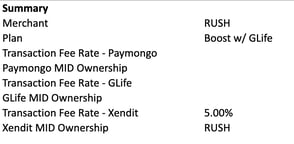
- Merchant Plan & Transaction Fee Rates – Shows your subscription and fees per payment provider (PayMongo, GLife, Xendit)
- Payout Summary – Total amounts for the week:
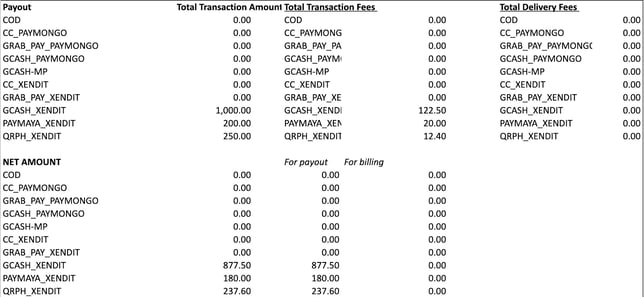
- Total Transaction Amount
- Total Transaction Fees
- Total Delivery Fees
- NET Amount
- Detailed Summary:
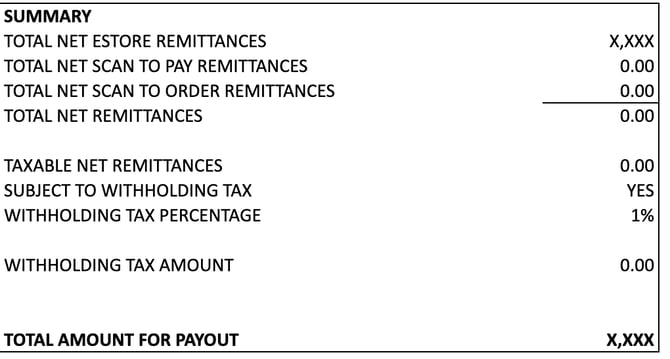
- Total Net eStore Remittances
- Total Net Scan to Pay Remittances
- Total Net Scan to Order Remittances
- Total Net Remittances
- Taxable Net Remittances
- Withholding Tax & Percentage
- Total Amount for Payout
This summary lets you quickly see how much you earned, the fees deducted, and your final payout.